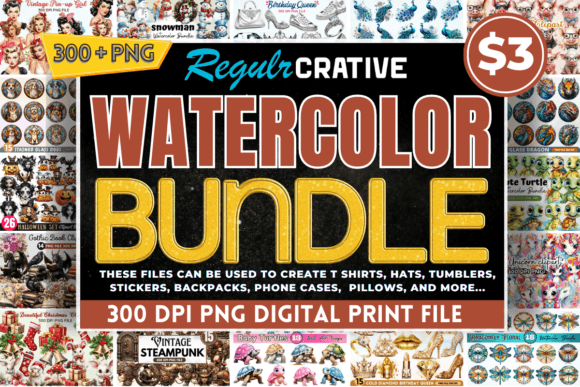
Watercolor PNG Mega Bundle: What You Actually Need to Know Before Downloading
If you've landed on a listing for the Watercolor PNG Mega Bundle, you're likely excited—and rightly so. With 300 unique, hand-painted watercolor designs spread across 20 themed bundles—from vintage wildflowers and zodiac signs to Halloween monsters and camping motifs—it’s easy to see why creators reach for it first. But excitement shouldn’t replace clarity. Many buyers assume “mega” means “plug-and-play,” only to hit roadblocks later: missing transparency, incompatible file structures, or unexpected usage limits. Let’s clear that up—practically, honestly, and without hype.
What This Bundle Really Is (and Isn’t)
The Watercolor PNG Mega Bundle is an instant digital download containing 300 high-resolution PNG files—each with transparent backgrounds—organized into zip folders by theme. That means no physical product, no shipping, and no waiting. It’s designed for crafters, small business owners, educators, and designers who need ready-to-use visuals for sublimation, print-on-demand, Cricut cutting, scrapbooking, wall art, or social media graphics.
But here’s what it isn’t: it’s not editable vector artwork (like SVG or AI files), and the fonts used in text-based designs—like those in the “Birthday Queen Sublimation Clipart” or “Back to School Sublimation Clipart”—are rasterized. That means you can’t change the wording, adjust letter spacing, or swap typefaces. If your project requires custom text, plan to layer your own typography over the design—not edit what’s embedded.
A Common Mistake: Assuming All PNGs Are Created Equal
Not all PNGs perform the same—even within one bundle. Some watercolor textures may have subtle anti-aliasing halos or faint white edges if exported carelessly. Others might include subtle paper grain or bleed that looks beautiful on mugs but causes registration issues when cutting with a Cricut Explore Air 2. Before using any design for physical products, open it in your editing software (like Photoshop, Canva, or Cricut Design Space) and zoom to 400%. Check the edges for clean transparency. If you spot fringing or inconsistent alpha channels, use a quick “refine edge” or “remove background” tool—but don’t assume every file will be production-ready out of the gate.
Overlooking File Organization—and Paying for It Later
The bundle delivers 20 separate zip files—one per theme. That’s thoughtful curation, not clutter. Yet some users extract everything into one folder, lose track of which designs belong to “Stained Glass Christmas Flowers Pillow” versus “Stained Glass with Christmas Flowers,” and accidentally mix commercial-use and personal-use assets (though this bundle permits both). To avoid confusion: rename folders clearly (e.g., Zodiac_Signs_Watercolor_PNG), keep zips intact as backups, and scan the included “300 PNG List” PDF before starting a project. It’s not just a checklist—it’s your license map.
Misjudging Use Cases—and Wasting Time
This bundle shines for surface decoration: iron-ons, printable cards, sublimation blanks, and layered digital collages. It’s less ideal for large-format outdoor signage or embroidery digitizing—watercolor softness doesn’t translate well to stitch definition or UV-resistant vinyl cuts. One small-business owner ordered it expecting to cut intricate “Garden Gnome Clipart” decals for garden stakes—only to find fine details (like whiskers or floral stems) didn’t hold up at 12" scale. Her fix? She isolated the strongest silhouettes, simplified them in Inkscape, and re-exported as SVG. Lesson: know your output medium first. When in doubt, test one design at full size before batching.
Skipping the Compatibility Check
You *can* use these with Cricut—but not all features work the same way. The “Cute Baby Animals Clipart Bundle,” for example, includes multi-layer watercolor washes. In Cricut Design Space, those layers won’t auto-separate unless you upload as PNG and use “Simple Cut” or manually slice. Likewise, “Turtle Stained Glass Sublimation Clipart” relies on color blocking; if you’re printing on dark shirts, you’ll need a white underbase—something the PNG itself won’t generate. Always verify your workflow supports layered transparency and color separation *before* committing to a full run.
Why Licensing Clarity Matters More Than You Think
This bundle allows commercial use—meaning you can sell items made with these designs (t-shirts, mugs, stickers, etc.). But it does *not* grant trademark rights, resale of the files themselves, or the right to claim authorship. A freelance designer once uploaded “Vintage Pin Up Coffee Girl Clipart” to her client’s Shopify store as “original brand artwork.” When the client expanded into apparel, they faced takedown requests—not from the bundle creator, but from third-party platforms flagging unlicensed watercolor motifs. The fix was simple: credit wasn’t required, but transparency about source and scope was essential for long-term trust.
Before You Hit Download—Three Practical Checks
- Verify your software supports PNG transparency—especially if using older versions of Silhouette Studio or free-tier Canva. Test one file first.
- Confirm your intended product’s minimum resolution needs. For sublimation on 11x14 mugs, 3000px width is safe. For 24x36 posters? You may need to upscale carefully—or choose bolder designs like “Winter Christmas Snowman Clipart Bundle” that hold detail at larger sizes.
- Scan the “300 PNG List” for duplicates or gaps. While rare, some bundles unintentionally repeat a motif across themes (e.g., a single holly sprig appearing in both “Christmas Tree Sublimation Clipart” and “Stained Glass Christmas Flowers”). Cross-checking saves time during design selection.
The Watercolor PNG Mega Bundle isn’t a shortcut—it’s a well-stocked toolbox. Its value multiplies when you match each design to your real-world constraints: software, scale, substrate, and audience. Treat it like a curated library, not a magic button. Open one zip. Try one design. Adjust one setting. Then build from there. That’s how good results start—not with speed, but with intention.